
Quick guide & FAQ
Bynji Help
Bynji quietly remembers meaningful video playback. You watch normally; Bynji builds a private Library and offers confirmed Resume positions when it is safe to do so.
Quick start
1. Finish first-time setup
Choose light or dark mode, your Resume preference, and optional subtitle behavior.
2. Pin Bynji
Open Chrome’s Extensions menu and pin Bynji if you want its icon beside the address bar.
3. Watch normally
Play a standard web video. Bynji waits for meaningful playback before saving it.
4. Return later
Open the video again and use the Resume prompt or your Library’s Resume action.
Bynji normally qualifies playback after 60 seconds. Muted autoplay and small background videos can be ignored through Settings so they do not clutter your history.
The toolbar popup
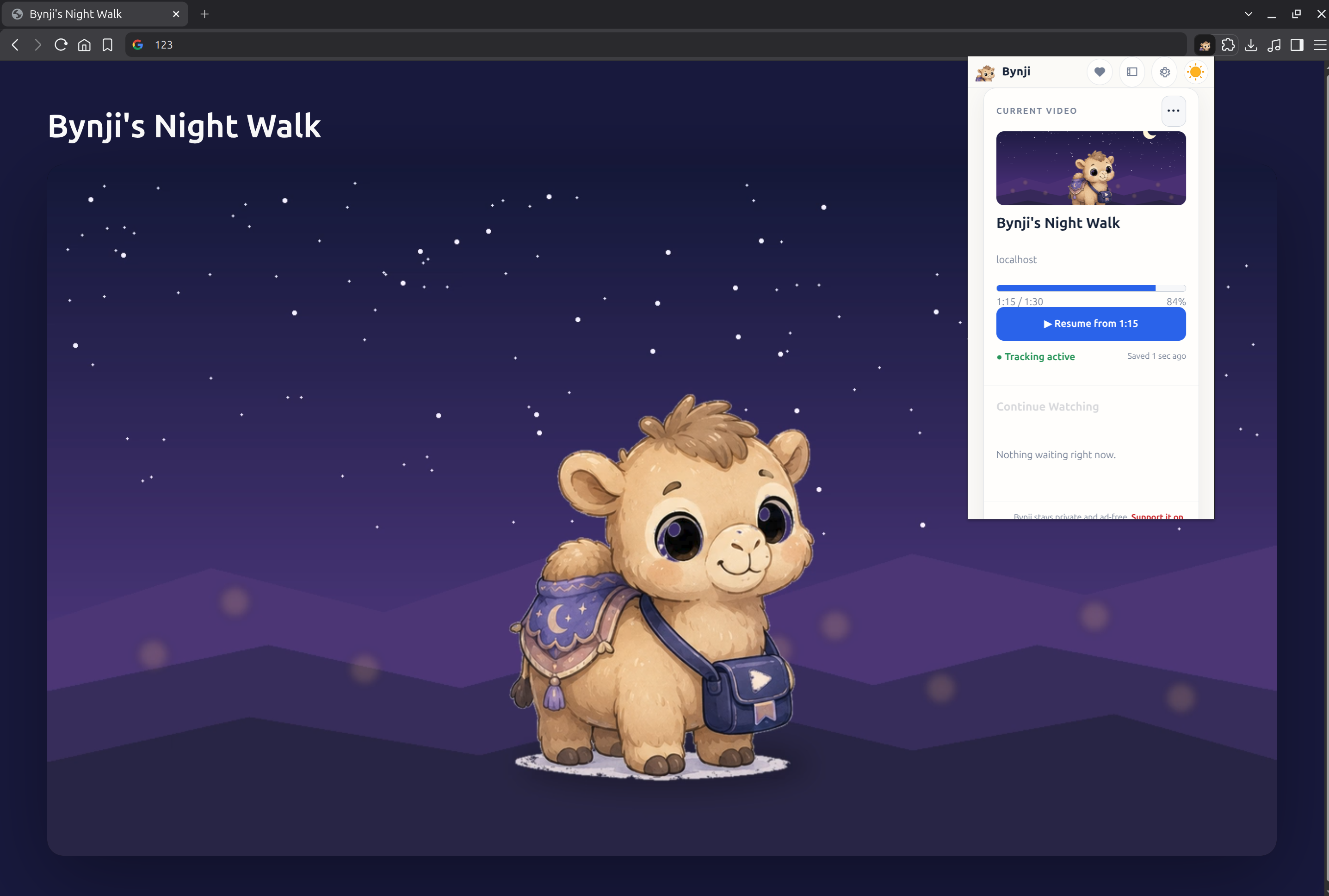
The popup shows the current video, saved progress, tracking status and Continue Watching. Its header provides direct access to support, Library and Settings. If the icon is hidden, use Chrome’s Extensions button and pin Bynji.
Playback & Resume
When Bynji offers Resume
Resume is offered only when Bynji has a confirmed saved position, recognizes the current presentation, and considers its timeline safe. Refreshes, new tabs, player replacement and later backward seeks can trigger a fresh eligibility check.
Resume modes
- Ask: show a prompt and let you decide. This is the default.
- Never: keep progress without showing Resume prompts.
- Auto: resume automatically when the saved position is safely confirmed.
Closing a Resume prompt records a dismissal for that presentation so Bynji does not keep interrupting you. You can always resume manually from Library.
Completion
Bynji can infer completion near the end of a video, and you can mark an item complete or incomplete yourself. Your explicit choice takes priority.
Library, Trail & Insights
Library
Library organizes saved videos, movies, series and episodes. Select an item to inspect its progress, available website sources and playback history. Series expand with the newest season and episode first.
Trail
Trail groups qualified viewing sessions by day. It shows when you watched, for how long, and how multiple videos related within the session.
Insights
Insights summarizes watch time, completed media and active series using information stored in your local Bynji database. Bynji does not send these summaries to an analytics service.
Settings & your data
- Appearance: light and dark mode apply to Bynji-owned pages, popups and Resume prompts.
- Subtitles: optionally request a preferred language when the active player exposes suitable tracks.
- Excluded websites: stop Bynji from tracking websites you select.
- Tracking: disable all new page observation without deleting existing history.
- Exports: create human-readable TXT or Markdown, or a portable JSON backup.
- Deletion: remove individual items, website history, or all Bynji data.
Local Sync is an optional feature that mirrors your library directly to a local folder on your computer using standard browser-native folder access. No remote cloud services, accounts, or terminal setups are required.
Why Bynji requests permissions
- Website access: recognize active playback and read bounded video metadata.
- Storage: preserve your local Library, progress, settings and viewing sessions.
- Web navigation: keep the correct video attached after page or player changes.
- Alarms: perform bounded local maintenance while the extension is idle.
- Side Panel: provide the optional browser-owned Bynji panel.
Bynji does not execute remote code, use these permissions for advertising, or transmit your viewing history to the developer. Read the Privacy Policy for the complete disclosure.
Troubleshooting
A video was not saved
- Confirm tracking is enabled and the website is not excluded.
- Play the main video normally for at least 60 seconds.
- Check that the video is not muted autoplay or a small background player you asked Bynji to ignore.
- Open the popup and check its current tracking status.
Resume was not offered
- Confirm Resume is set to Ask or Auto.
- Check Library for a meaningful confirmed position rather than only a few seconds.
- Wait for the player to finish loading, then interact with its timeline once.
- Use the Library Resume button if a website prevents the on-page prompt from appearing.
A title or episode looks wrong
Websites sometimes expose player branding, recommendation lists or incomplete episode data. Bynji keeps uncertainty separate rather than risking a destructive merge. You can correct the item in Library, and your correction outranks later automatic discovery.
Bynji cannot run on a page
Browsers block extensions from modifying internal pages, the Chrome Web Store and some protected documents. Bynji also disables incognito access by design.
Local Sync shows an Error or folder picker does not open in Brave
Brave blocks the browser-native File System Access API by default for privacy reasons. To enable direct folder sync in Brave:
- Open a new tab in Brave and navigate to
brave://flags/#file-system-access-api. - Change File System Access API from Default (Disabled) to Enabled.
- Click the Relaunch button at the bottom of the browser.
- Re-open Bynji Settings > Local Sync and click Choose sync folder.
What does the "● Error" status in Local Sync mean?
In the public release, a generic error status indicates that the browser denied folder access, folder permissions were revoked, or the previously selected folder was moved or deleted on your disk. Click Choose sync folder in Settings to re-authorize or select your sync folder.
Frequently asked questions
Where is my history stored?
Inside Bynji’s local browser database on your device until you delete or export it.
Does Bynji have an account?
No. The public extension has no Bynji account or developer-operated cloud.
Does it work on every website?
It supports standard web players, but compatibility varies as websites and players change.
Can I back up my Library?
Yes. Export JSON in Settings for a portable backup, or TXT/Markdown for a readable copy.
Does Bynji track every page I visit?
No. It observes pages to identify active video playback and saves qualified media activity.
How do I resume web videos without an account?
Bynji saves playback progress locally in your browser and displays a Resume prompt whenever you revisit a video. No account, login, or cloud connection is ever required.
How does Bynji sync between computers without a central server?
Through optional Local Sync, Bynji connects directly to a folder on your computer using standard browser-native folder access. Pair it with your own Syncthing, Dropbox, Drive, or local NAS to synchronize across all your devices under your own control.
Is Bynji free and ad-free?
Yes. Bynji is completely free, has zero advertising, no sponsored recommendations, and no remote telemetry.
How can I support development?
Share Bynji or make a voluntary contribution through Ko-fi.